
post 'good coders code, great reuse' to del.icio.us post 'good coders code, great reuse' to digg post 'good coders code, great reuse' to reddit subscribe to 'good coders code, great reuse' posts via feed
good coders code, great reuse

If the lessons of history teach us anything it is that nobody learns the lessons that history teaches us.

I am now on Twitter! Meet me on Twitter here (my nick is pkrumins.)
Or on Google Buzz and Facebook.

Howto 27 Jan 2010 09:20 am
1 Star2 Stars3 Stars4 Stars5 Stars (3 votes, average: 4.67 out of 5)
Loading ... Loading ...

Hey everyone, just wanted to do a quick post on how to keep track of who’s talking about you on the net. Nothing really unique, just a list of tools that I use often. Why is it important? Well, it’s always interesting to know what people are saying about you and sometimes you want to engage in a conversation or just thank them for linking to your article.

Alright, here are the tools that I use:

Twitter Search

Twitter search is definitely the #1 source for keeping track of who’s talking about you right now. But you already knew that.

Twitter Search
Twitter search example for the term “catonmat.”

Perhaps what you didn’t know is that they have an RSS feed for search queries.

Twitter search RSS feed
Location of RSS feed link for Twitter search results.

Now combined with a service like feedblitz.com you can email the RSS updates to yourself or just read them from your favorite RSS reader.

I am monitoring terms “Peteris Krumins”, “pkrumins” and “catonmat”.

Google Alerts

Google Alerts automatically notifies you when the Google search engine locates new results for your search terms. You can choose to have your alerts delivered via email or RSS feed.

Google Alerts
Google Alerts email for the term “catonmat.”

You can even customize the type of alerts you wish to receive. Google Alerts lets you choose to get notified when a new result appears on web pages, usenet (google groups), blogs, news or videos.

Backtype Comment Alerts

Backtype is Google for comments. Want to find out when someone’s mentioned you on Reddit, FriendFeed, Digg or Hacker News? Backtype will alert you.

Backtype Comment Alerts
Backtype Alerts email for the term “peteris.”

Backtype also recently launched a service called BackTweets that allows you to find who’s linking back to you via shortened URLs.

Have Fun!

Have fun keeping track of yourself!

Btw, let me know in the comments if I missed any other cool tools.

Comments (5) Comments | Email Post Email 'How to keep track of who’s talking about you' to a friend | Print Post Print 'How to keep track of who’s talking about you' | Permalink Permalink to 'How to keep track of who’s talking about you' | Trackback Trackback to 'How to keep track of who’s talking about you'
(Popularity: 6%) 3,909 Views

Did you like this page? Subscribe to my posts!

I am now on Twitter! Meet me on Twitter here (my nick is pkrumins.)
Or on Google Buzz and Facebook.

Howto 13 Oct 2008 08:10 pm
1 Star2 Stars3 Stars4 Stars5 Stars (9 votes, average: 4.89 out of 5)
Loading ... Loading ...

set operationsA while ago I wrote about how I solved the Google Treasure Hunt Puzzle Nr. 4 about prime numbers. I took an unusual approach and solved this problem entirely from the Unix shell. The solution involved finding the intersection between a bunch of files containing numbers. This lead me to an idea to write a post about how to do various set operations from the shell by using common utilities such as sort, uniq, diff, grep, head, tail, comm, and others.

I’ll cover the following set operations in this article:

  • Set Membership. Test if an element belongs to a set.
  • Set Equality. Test if two sets contain the same elements.
  • Set Cardinality. Return the number of elements in the set.
  • Subset Test. Test if a given set is a subset of another set.
  • Set Union. Find union of two sets.
  • Set Intersection. Find intersection of two sets.
  • Set Complement. Given two sets A and B, find all elements in A that are not in B.
  • Set Symmetric Difference. Find symmetric difference of two sets.
  • Power Set. Generate all subsets of a set.
  • Set Cartesian Product. Find A x B.
  • Disjoint Set Test. Test if two sets are disjoint.
  • Empty Set Test. Test if a given set is empty.
  • Minimum. Find the smallest element of a set.
  • Maximum. Find the largest element of a set.

Update: I wrote another post about these operations and created a cheat sheet.
Download cheat sheet: set operations in unix shell (.txt) (3865)

To illustrate these operations, I created a few random sets to work with. Each set is represented as a file with one element per line. The elements are positive numbers.

First I created two sets A and B with 5 elements each so that I could easily check that the operations really work.

Sets A and B are hand crafted. It’s easy to see that only elements 1, 2 and 3 are in common:

$ cat A     $ cat B
3           11
5           1
1           12
2           3
4           2

I also created a set Asub which is a subset of set A and Anotsub which is not a subset of A (to test the Subset Test operation):

$ cat Asub     $ cat Anotsub
3              6
2              7
5              8

Next I created two equal sets Aequal and Bequal again with 5 elements each:

$ cat Aequal     $ cat Bequal
103              100
102              101
101              102
104              103
100              104

Then I created two huge sets Abig and Bbig with 100,000 elements (some of them are repeated, but that’s ok).

The easiest way to generate sets Abig and Bbig is to take natural numbers from /dev/urandom. There are two shell commands that can easily do that. The first is “od” and the second is “hexdump“.

Here is how to create two files with 100,000 natural numbers with both commands.

With hexdump:

$ hexdump -e '1/4 "%u\n"' -n400000 /dev/urandom > Abig
$ hexdump -e '1/4 "%u\n"' -n400000 /dev/urandom > Bbig

The “-e” switch specifies a hand-crafted output format. It says take 1 element of size 4 bytes and output it as an unsigned integer. The “-n” switch specifies how many bytes to read, in this case 400000 (400000 bytes / 4 bytes per element = 100000 elements).

With od:

$ od -An -w4 -tu4 -N400000 /dev/urandom | sed 's/ *//' > Abig
$ od -An -w4 -tu4 -N400000 /dev/urandom | sed 's/ *//' > Bbig

The “-An” switch specifies that no line address is necessary. The “-w4″ switch specifies number of bytes to output per line. The “-tu4″ says to output unsigned 4-byte numbers and “-N400000″ limits the output to 400000 bytes (400000/4 = 100000 elements). The output from od has to be filtered through sed to drop the leading whitespace characters.

Okay, now let’s look at various set operations.

Set Membership

The set membership operation tests if an element belongs to a set. We write aA, if element a belongs to set A, and we write aA, if it does not.

The easiest way to test if an element is in a set is to use “grep” command. Grep searches the file for lines matching a pattern:

$ grep -xc 'element' set

The “-c” flag outputs number of elements in the set. If it is not a multi-set, the number of elements should be 0 or 1. The “-x” option specifies to match the whole line only (no partial matches).

Here is an example of this operation run on set A:

$ grep -xc '4' A
1
$ grep -xc '999' A
0

That’s correct. Set A contains element 4 but does not contain element 999.

If the membership operation has to be used from a shell script, the return code from grep can be used instead. Unix commands succeed if the return code is 0, and fail otherwise:

$ grep -xq 'element' set
# returns 0 if element ∈ set
# returns 1 if element ∉ set

The “-q” flag makes sure that grep does not output the element if it is in the set.

Set Equality

The set equality operation tests if two sets are the same, i.e., contain the same elements. We write A = B if sets A and B are equal and AB if they are not.

The easiest way to test if two sets are equal is to use “diff” command. Diff command compares two files for differences. It will find that the order of lines differ, so the files have to be sorted first. If they are multi-sets, the output of sort has to be run through “uniq” command to eliminate duplicate elements:

$ diff -q <(sort set1 | uniq) <(sort set2 | uniq)
# returns 0 if set1 = set2
# returns 1 if set1 ≠ set2

The “-q” flag quiets the output of diff command.

Let’s test this operation on sets A, B, Aequal and Bequal:

$ diff -q <(sort A | uniq) <(sort B | uniq)
# return code 1 -- sets A and B are not equal

$ diff -q <(sort Aequal | uniq) <(sort Bequal | uniq)
# return code 0 -- sets A and B are equal

If you have already sorted sets, then just run:

$ diff -q set1 set2

Set Cardinality

The set cardinality operations returns the number of elements in the set. We write |A| to denote the cardinality of the set A.

The simplest way to count the number of elements in a set is to use “wc” command. Wc command counts the number of characters, words or lines in a file. Since each element in the set appears on a new line, counting the number of lines in the file will return the cardinality of the set:

$ wc -l set | cut -d' ' -f1

Cut command is necessary because “wc -l” also outputs the name of the file it was ran on. The cut command outputs the first field which is number of lines in the file.

We can actually get rid of cut:

$ wc -l < set

Let’s test if on sets A and Abig:

$ wc -l A | cut -d' ' -f1
5

$ wc -l Abig | cut -d' ' -f1
100000

$ wc -l < A
5

$ wc -l < Abig
100000

Subset Test

The subset test tests if the given set is a subset of another set. We write SA if S is a subset of A, and SA, if it’s not.

I found a very easy way to do it using the “comm” utility. Comm compares two sorted files line by line. It may be run in such a way that it outputs lines that appear only in the first specified file. If the first file is subset of the second, then all the lines in the 1st file also appear in the 2nd, so no output is produced:

$ comm -23 <(sort subset | uniq) <(sort set | uniq) | head -1
# comm returns no output if subset ⊆ set
# comm outputs something if subset ⊊ set

Please remember that if you have a numeric set, then sort must take “-n” option.

Let’s test if Asub is a subset of A:

$ comm -23 <(sort -n Asub|uniq) <(sort -n A|uniq) | head -1
# no output - yes, Asub ⊆ A

Now let’s test if Anotsub is a subset of A:

$ comm -23 <(sort -n Anotsub|uniq) <(sort -n A|uniq) | head -1
6 # has output - no, Anotsub ⊊ A

If you want to use it from a shell script, you’d have to test if the output from this command was empty or not.

Set Union

The set union operation unions two sets, i.e., join them into one set. We write C = AB to denote union of sets A and B which produces set C.

Set union is extremely easy to create. Just use the “cat” utility to concatenate two files:

$ cat set1 set2

If the duplicates (elements which are both in set1 and set2) are not welcome, then the output of cat can be filtered via awk:

$ cat set1 set2 | awk '!found[$1]++'

# we can also get rid of cat by just using awk:

$ awk '!found[$1]++' set1 set2

If we don’t want to use awk, which is a whole-blown programming language, then we can sort the output of cat and filter it via uniq:

$ cat set1 set2 | sort | uniq

# we can get rid of cat by specifying arguments to sort:

$ sort set1 set2 | uniq

# finally we can get rid of uniq by specifying -u flag to sort

$ sort -u set1 set2

If the sets set1 and set2 are already sorted, then the union operation can be made much faster by specifying the “-m” command line option, which merges the files (like the final step of merge-sort algorithm):

$ sort -m set1 set2 | uniq

# or

$ set -um set1 set2

Let’s test this operation on sets A and B:

$ cat A B # with duplicates
3
5
1
2
4
11
1
12
3
2

$ awk '!found[$1]++' # without dupes
3
5
1
2
4
11
12

$ sort -n A B | uniq # with sort && uniq
1
2
3
4
5
11
12

Set Intersection

The set intersection operation finds elements that are in both sets at the same time. We write C = AB to denote the intersection of sets A and B, which produces the set C.

There are many ways to do set intersection. The first way that I am going to show you uses “comm”:

$ comm -12 <(sort set1) <(sort set2)

The “-12″ option to comm directs it to suppress output of lines appearing just in the 1st and the 2nd file and makes it output lines appearing in both 1st and 2nd, which is the intersection of two sets.

Please remember that if you have a numeric set, then sort must take “-n” option.

Another way to do it is to use “grep” utility. I actually found about this method as I was writing this article:

$ grep -xF -f set1 set2

The “-x” option forces grep to match the whole lines (no partial matches). The “-f set1″ specifies the patterns to use for searching. The “-F” option makes grep interpret the given patterns literally (no regexes). It works by matching all lines of set1 in set2. The lines that appear just in set1 or just in set2 are never output.

The next way to find intersection is by using “sort” and “uniq”:

$ sort set1 set2 | uniq -d

The “-d” option to uniq forces it to print only the duplicate lines. Obviously, if a line appears in set1 and set2, after sorting there will be two consecutive equal lines in the output. The “uniq -d” command prints such repeated lines (but only 1 copy of it), thus it’s the intersection operation.

Just a few minutes before publishing this article I found another way to do intersection with “join” command. Join command joins files on a common field:

$ join <(sort -n A) <(sort -n B)

Here is a test run:

$ sort -n A B | uniq -d
1
2
3

$ grep -xF -f A B
1
3
2

$ comm -12 <(sort -n A) <(sort -n B)
1
2
3

Set Complement

The set complement operation finds elements that are in one set but not the other. We write A - B or A \ B to denote set’s B complement in set A.

Comm has become a pretty useful command for operating on sets. It can be applied to implement set complement operation as well:

$ comm -23 <(sort set1) <(sort set2)

The option “-23″ specifies that comm should not print elements that appear just in set2 and that are common to both. It leaves comm to print elements which are just in set1 (and not in set2).

The “grep” command can also be used to implement this operation:

$ grep -vxF -f set2 set1

Notice that the order of sets has been reversed from that of comm. That’s because we are searching those elements in set1, which are not in set2.

Another way to do it is, of course, with “sort” and “uniq“:

$ sort set2 set2 set1 | uniq -u

This is a pretty tricky command. Suppose that a line appears in set1 but does not appear in set2. Then it will be output just once and will not get removed by uniq. All other lines get removed.

Let’s put these commands to test:

$ comm -23 <(sort -n A) <(sort -n B)
4
5

$ grep -vxF -f B A
5
4

$ sort -n B B A | uniq -u
4
5

Set Symmetric Difference

The set symmetric difference operation finds elements that are in one set, or in the other but not both. We write A Δ B to denote symmetric difference of sets A and B.

The operation can be implemented very easily with “comm” utility:

$ comm -3 <(sort set1) <(sort set2) | sed 's/\t//g'

# sed can be replaced with tr

$ comm -3 <(sort set1) <(sort set2) | tr -d '\t'

Here comm is instructed via “-3″ not to output fields that are common to both files, but to output fields that are just in set1 and just in set2. Sed is necessary because comm outputs two columns of data and some of it is right padded with a \t tab character.

It can also be done with “sort” and “uniq“:

$ sort set1 set2 | uniq -u

We can use mathematics and derive a few formulas involving previously used operations for symmetric difference: A Δ B = (A - B) ∪ (B - A). Now we can use grep:

$ cat <(grep -vxF -f set1 set2) <(grep -vxF -f set2 set1)
# does (B - A) ∪ (A - B)

# this can be simplified

$ grep -vxF -f set1 set2; grep -vxF -f set2 set1

Let’s test it:

$ comm -3 <(sort -n A) >(sort -n B) | sed 's/\t//g'
11
12
4
5

$ sort -n A B | uniq -u
4
5
11
12

$ cat <(grep -vxF -f B A) <(grep -vxF -f A B)
5
4
11
12

Power Set

The power set operation generates a power-set of a set. What’s a power set? It’s a set that contains all subsets of the set. We write P(A) or 2A to denote all subsets of A. For a set with n elements, the power set contains 2n elements.

For example, the power-set of the set { a, b, c } contains 23 = 8 elements. The power-set is { {}, {a}, {b}, {c}, {a, b}, {a, c}, {b, c}, {a, b, c} }.

It’s not easy to do that with simple Unix tools. I could not think of anything better than a silly Perl solution:

$ perl -le '
sub powset {
 return [[]] unless @_;
 my $head = shift;
 my $list = &powset;
 [@$list, map { [$head, @$_] } @$list]
}
chomp(my @e = <>);
for $p (@{powset(@e)}) {
 print @$p;
}' set

Can you think of a way to do it with Unix tools?

Set Cartesian Product

The set Cartesian product operation produces produces a new set that contains all possible pairs of elements from one set and the other. The notation for Cartesian product of sets A and B is A x B.

For example, if set A = { a, b, c } and set B = { 1, 2 } then the Cartesian product A x B = { (a, 1), (a, 2), (b, 1), (b, 2), (c, 1), (c, 2) }.

I can’t think of a great solution. I have a very silly solution in bash:

$ while read a; do while read b; do echo "$a, $b"; done < set1; done < set2

Can you think of other solutions?

Disjoint Set Test

The disjoint set test operation finds if two sets are disjoint, i.e., they do not contain common elements.

Two sets are disjoint if their intersection is the empty set. Any of the set intersection commands (mentioned earlier) can be applied on the sets and the output can be tested for emptiness. If it is empty, then the sets are disjoint, if it is not, then the sets are not disjoint.

Another way to test if two sets are disjoint is to use awk:

$ awk '{ if (++seen[$0]==2) exit 1 }' set1 set2
# returns 0 if sets are disjoint
# returns 1 if sets are not disjoint

It works by counting seen elements in set1 and then set2. If any of the elements appear both in set1 and set2, seen count for that element would be 2 and awk would quit with exit code 1.

Empty Set Test

The empty set test tests if the set is empty, i.e., contains no elements. The empty set is usually written as Ø.

It’s very easy to test if the set is empty. The cardinality of an empty set is 0:

$ wc -l set | cut -d' ' -f1
# outputs 0 if the set is empty
# outputs > 0 if the set is not empty

Getting rid of cut:

$ wc -l < set
# outputs 0 if the set is empty
# outputs > 0 if the set is not empty

Minimum

The minimum operation returns the smallest number in the set. We write min(A) to denote the minimum operation on the set A.

The minimum element of a set can be found by first sorting it in ascending order and then taking the first element. The first element can be taken with “head” Unix command which outputs the first part of the file:

$ head -1 <(sort set)

The “-1″ option specifies to output the first line only.

If the set is already sorted, then it’s even simpler:

$ head -1 set

Remember to use “sort -n” command if the set contains numeric data.

Example of running minimum operation on sets A and Abig:

$ head -1 <(sort -n A)
1
$ head -1 <(sort -n Abig)
2798

Maximum

The maximum operation returns the biggest number in the set. We write max(A) to denote the maximum operation on the set A.

The maximum element of a set can be found by first sorting it in ascending order and then taking the last element. The last element can be taken with “tail” Unix command which outputs the last part of the file:

$ tail -1 <(sort set)

The “-1″ option specifies to output the last line only.

If the set is already sorted, then it’s even simpler:

$ tail -1 set

Remember to use “sort -n” command if the set contains numeric data.

Example of running maximum operation on sets A and Abig:

$ tail -1 <(sort -n A)
5
$ head -1 <(sort -n Abig)
4294906714

Have Fun!

Have fun working with these set operations! Thanks to lhunath and waldner from #bash for helping. :)

Comments (32) Comments | Email Post Email 'Set Operations in the Unix Shell' to a friend | Print Post Print 'Set Operations in the Unix Shell' | Permalink Permalink to 'Set Operations in the Unix Shell' | Trackback Trackback to 'Set Operations in the Unix Shell'
(Popularity: 22%) 31,637 Views

Did you like this page? Subscribe to my posts!

I am now on Twitter! Meet me on Twitter here (my nick is pkrumins.)
Or on Google Buzz and Facebook.

Cheat SheetsHowto 18 Feb 2008 04:00 pm
1 Star2 Stars3 Stars4 Stars5 Stars (21 votes, average: 4.62 out of 5)
Loading ... Loading ...

bash readline emacs editing mode default keyboard shortcut cheat sheet Let me teach you how to work efficiently with command line history in bash.

This tutorial comes with a downloadable cheat sheet that summarizes (and expands on) topics covered here (scroll to the end for a download link).

In case you are a first time reader, this is the 3rd part of the article series on working efficiently in bourne again shell. Previously I have written on how to work efficiently in vi and emacs command editing modes by using predefined keyboard shortcuts (both articles come with cheat sheets of predefined shortcuts).

First, lets review some basic keyboard shortcuts for navigating around previously typed commands.

As you remember, bash offers two modes for command editing - emacs mode and vi mode. In each of these editing modes the shortcuts for retrieving history are different.

Suppose you had executed the following commands:

$ echo foo bar baz
$ iptables -L -n -v -t nat
$ ... lots and lots more commands
$ echo foo foo foo
$ perl -wle 'print q/hello world/'
$ awk -F: '{print$1}' /etc/passwd
$

and you wanted to execute the last command (awk -F …).

You could certainly hit the up arrow and live happily along, but do you really want to move your hand that far away?

If you are in emacs mode just try CTRL-p which fetches the previous command from history list (CTRL-n for the next command).

In vi mode try CTRL-[ (or ESC) (to switch to command mode) and ‘h‘ (’j‘ for the next command).

There is another, equally quick, way to do that by using bash’s history expansion mechanism - event designators. Typing ‘!!‘ will execute the previous command (more about event designators later).

Now, suppose that you wanted to execute ‘iptables -L -n -v -t nat‘ command again without retyping it.

A naive user would, again, just keep hitting up-arrow key until he/she finds the command. But that’s not the way hackers work. Hackers love to work quickly and efficiently. Forget about arrow keys and page-up, page-down, home and end keys. They are completely useless and, as I said, they are too far off from the main part of the keyboard anyway.

In emacs mode try CTRL-r and type a few first letters of ‘iptables‘, like ‘ipt‘. That will display the last iptables command you executed. In case you had more than one iptables commands executed in between, hitting CTRL-r again will display older entries. In case you miss the right command and move too deep into history list, you can reverse the search direction by hitting CTRL-s (don’t forget that by default CTRL-s stops the output to the terminal and you’ll get an effect of “frozen” terminal (hit CTRL-q to “unfreeze”), see stty command to change this behavior).

In vi mode the same CTRL-r and CTRL-s still work but there is another way more specific to vi mode.
Switch to command mode by hitting CTRL-[ or ESC and hit ‘/‘, then type a first few characters of ‘iptables’ command, like ‘ipt’ and hit return. Bash will display the most recent match found in history. To navigate around use ‘n‘ or just plain ‘/‘ to repeat the search in the same direction, and ‘N‘ or ‘?‘ to repeat the search in opposite direction!

With event designators you may execute only the most recently executed command matching (or starting with) ’string’.

Try ‘!iptables‘ history expansion command which refers to the most recent command starting with ‘iptables’.

Another way is to use bash’s built in ‘history‘ command then grep for a string of interest and finally use an event designator in form ‘!N‘, where N is an integer which refers to N-th command in command history list.

For example,

$ history | grep 'ipt'
  2    iptables -L -n -v -t nat
$ !2     # will execute the iptables command

I remembered another way to execute N-th command in history list in vi editing mode. Type ‘N‘ (command number) and then ‘G‘, in this example ‘2G

Listing and Erasing Command History

Bash provides a built-in command ‘history‘ for viewing and erasing command history.

Suppose that we are still working with the same example:

$ echo foo bar baz
$ iptables -L -n -v -t nat
$ ... lots and lots more commands
$ echo foo foo foo
$ perl -wle 'print q/hello world/'
$ awk -F: '{print$1}' /etc/passwd
$

Typing ‘history‘ will display all the commands in bash history alongside with line numbers:

  1    echo foo bar baz
  2    iptables -L -n -v -t nat
  ...  lots and lots more commands
  568  echo foo foo foo
  569  perl -wle 'print q/hello world/'
  570  awk -F: '{print$1}' /etc/passwd

Typing ‘history N‘, where N is an integer, will display the last N commands in the history.
For example, ‘history 3‘ will display:

  568  echo foo foo foo
  569  perl -wle 'print q/hello world/'
  570  awk -F: '{print$1}' /etc/passwd

history -c will clear the history list and history -d N will delete a history entry N.

By default, the history list is kept in user’s home directory in a file ‘.bash_history‘.

History Expansion

History expansion is done via so-called event designators and word designators. Event designators can be used to recall previously executed commands (events) and word designators can be used to extract command line arguments from the events. Optionally, various modifiers can be applied to the extracted arguments.

Event designators are special commands that begin with a ‘!‘ (there is also one that begins with a ‘^‘), they may follow a word designator and one or more modifiers. Event designators, word designators and modifiers are separated by a colon ‘:‘.

Event Designators

Lets look at a couple of examples to see how the event designators work.

Event designator ‘!!‘ can be used to refer to the previous command, for example,

$ echo foo bar baz
foo bar baz
$ !!
foo bar baz

Here the ‘!!‘ executed the previous ‘echo foo bar baz‘ command.

Event designator ‘!N‘ can be used to refer to the N-th command.
Suppose you listed the history and got the following output:

  1    echo foo foo foo
  2    iptables -L -n -v -t nat
  ...  lots and lots more commands
  568  echo bar bar bar
  569  perl -wle 'print q/hello world/'
  570  awk -F: '{print$1}' /etc/passwd

Then the event designator ‘!569‘ will execute ‘perl …‘ command, and ‘!1‘ will execute ‘echo foo foo foo‘ command!

Event designator ‘!-N‘ refers to current command line minus N. For example,

$ echo foo bar baz
foo bar baz
$ echo a b c d e
a b c d e
$ !-2
foo bar baz

Here the event designator ‘!-2‘ executed a one before the previous command, or current command line minus 2.

Event designator ‘!string‘ refers to the most recent command starting with ‘string‘. For example,

$ awk --help
$ perl --help

Then the event designator ‘!p‘ or ‘!perl‘ or ‘!per‘ will execute the ‘perl –help‘ command. Similarly, ‘!a‘ will execute the awk command.

An event designator ‘!?string?‘ refers to a command line containing (not necessarily starting with) ‘string‘.

Perhaps the most interesting event designator is the one in form ‘^string1^string2^‘ which takes the last command, replaces string1 with string2 and executes it. For example,

$ ehco foo bar baz
bash: ehco: command not found
$ ^ehco^echo^
foo bar baz

Here the ‘^ehco^echo^‘ designator replaced the incorrectly typed ‘ehco‘ command with the correct ‘echo‘ command and executed it.

Word Designators and Modifiers

Word designators follow event designators separated by a colon. They are used to refer to some or all of the parameters on the command referenced by event designator.

For example,

$ echo a b c d e
a b c d e
$ echo !!:2
b

This is the simplest form of a word designator. ‘:2‘ refers to the 2nd argument of the command (3rd word). In general ‘:N‘ refers to Nth argument of the command ((N+1)-th word).

Word designators also accept ranges, for example,

$ echo a b c d e
a b c d e
$ echo !!:3-4
c d

There are various shortcuts, such as, ‘:$‘ to refer to the last argument, ‘:^‘ to refer to the first argument, ‘:*‘ to refer to all the arguments (synonym to ‘:1-$‘), and others. See the cheat sheet for a complete list.

Modifiers can be used to modify the behavior of a word designators. For example:

$ tar -xvzf software-1.0.tgz
software-1.0/file
...
$ cd !!:$:r
software-1.0$

Here the ‘r‘ modifier was applied to a word designator which picked the last argument from the previous command line. The ‘r‘ modifier removed the trailing suffix ‘.tgz’.

The ‘h‘ modifier removes the trailing pathname component, leaving the head:

$ echo /usr/local/apache
/usr/local/apache
$ echo !!:$:h
/usr/local

The ‘e‘ modifier removes all but the trailing suffix:

$ ls -la /usr/src/software-4.2.messy-Extension
...
$ echo /usr/src/*!!:$:e
/usr/src/*.messy-Extension    # ls could have been used instead of echo

Another interesting modifier is the substitute ‘:s/old/new/‘ modifier which substitutes new for old. It can be used in conjunction with ‘g‘ modifier to do global substitution. For example,

$ ls /urs/local/software-4.2 /urs/local/software-4.3
/usr/bin/ls: /urs/local/software-4.2: No such file or directory
/usr/bin/ls: /urs/local/software-4.3: No such file or directory
$ !!:gs/urs/usr/
...

This example replaces all occurances of ‘urs’ to ‘usr’ and makes the command correct.

There are a few other modifiers, such as ‘p‘ modifier which prints the resulting command after history expansion but does not execute it. See the cheat sheet for all of the modifiers.

Modifying History Behavior

Bash allows you to modify which commands get stored in the history list, the file where they get stored, the number of commands that get stored, and a few other options.

These options are controlled by setting HISTFILE, HISTFILESIZE, HISTIGNORE and HISTSIZE environment variables.

HISTFILE, as the name suggests, controls where the history file gets saved.
For example,

$ export HISTFILE=/home/pkrumins/todays_history

will save the commands to a file /home/pkrumins/todays_history

Set it to /dev/null or unset it to avoid getting your history list saved.

HISTFILESIZE controls how many history commands to keep in HISTFILE.
For example,

$ export HISTFILESIZE=1000

will keep the last 1000 history commands.

HISTSIZE controls how many history commands to keep in the history list of current session.
For example,

$ export HISTSIZE=42

will keep 42 last commands in the history of current session.

If this number is less than HISTFILESIZE, only that many commands will get written to HISTFILE.

HISTIGNORE controls the items which get ignored and do not get saved. This variable takes a list of colon separated patterns. Pattern ‘&’ (ampersand) is special in a sense that it matches the previous history command.

There is a trick to make history ignore the commands which begin with a space. The pattern for that is “[ ]*”

For example,

$ export HISTIGNORE="&:[ ]*:exit"

will make bash ignore duplicate commands, commands that begin with a space, and the ‘exit’ command.

There are several other options of interest controlled by the built-in ‘shopt‘ command.

The options may be set by specifying ‘-s‘ parameter to the ‘shopt‘ command, and may be unset by specifying ‘-u‘ parameter.

Option ‘histappend‘ controls how the history list gets written to HISTFILE, setting the option will append history list of current session to HISTFILE, unsetting it (default) will make HISTFILE get overwritten each time.

For example, to set this option, type:

$ shopt -s histappend

And to unset it, type:

$ shopt -u histappend

Option ‘histreedit‘ allows users to re-edit a failed history substitution.

For example, suppose you had typed:

$ echo foo bar baz

and wanted to substitute ‘baz’ for ‘test’ with the ^baz^test^ event designator , but you made a mistake and typed ^boo^test^. This would lead to a substitution failure because the previous command does not contain string ‘boo’.

If you had this option turned on, bash would put the erroneous ^baz^test^ event designator back on the command line as if you had typed it again.

Finally, option ‘histverify‘ allows users to verify a substituted history expansion.

Based on the previous example, suppose you wanted to execute that ‘echo’ command again by using the ‘!!’ event designator. If you had this option on, bash would not execute the ‘echo’ command immediately but would first put it on command line so that you could see if it had made the correct substitution.

Tuning the Command Prompt

Here is how my command prompt looks:

Wed Jan 30@07:07:03
pkrumins@catonmat:1002:2:~$

The first line displays the date and time the command prompt was displayed so I could keep track of commands back in time.
The second line displays username, hostname, global history number and current command number.

The global history number allows me to quickly use event designators.

My PS1, primary prompt display variable looks like this:

PS1='\d@\t\n\u@\h:\!:\#:\w$ '

Bash History Cheat Sheet

Here is a summary cheat sheet for working effectively with bash history.

This cheat sheet includes:

  • History editing keyboard shortcuts (emacs and vi mode),
  • History expansion summary - event designators, word designators and modifiers,
  • Shell variables and `shopt’ options to modify history behavior,
  • Examples

Download Bash History Summary Sheet

PDF format (.pdf):
Download link: bash history cheat sheet (.pdf)
Downloaded: 21740 times

ASCII .txt format:
Download link: bash history cheat sheet (.txt)
Downloaded: 5737 times

LaTeX format (.tex):
Download link: bash history cheat sheet (.tex)
Downloaded: 2959 times

This cheat sheet is released under GNU Free Document License.

Do you want to have a broader discussion on this topic?
Discuss it on catonmat forums!

Are there any tips you want to add?

Comments (61) Comments | Email Post Email 'The Definitive Guide to Bash Command Line History' to a friend | Print Post Print 'The Definitive Guide to Bash Command Line History' | Permalink Permalink to 'The Definitive Guide to Bash Command Line History' | Trackback Trackback to 'The Definitive Guide to Bash Command Line History'
(Popularity: 59%) 118,697 Views

Did you like this page? Subscribe to my posts!

I am now on Twitter! Meet me on Twitter here (my nick is pkrumins.)
Or on Google Buzz and Facebook.

Howto 21 Oct 2007 08:00 pm
1 Star2 Stars3 Stars4 Stars5 Stars (14 votes, average: 3.86 out of 5)
Loading ... Loading ...

extract mp3 audio track from youtube videoA few days ago my blog reader, Ankush Agarwal, on the comments of downloading youtube videos with gawk article asked:

I’ve seen tools available to download just the audio from a youtube video, in various formats; but as per your explanation it seems, that the audio is integrated with the video in the .swf file. How can we extract only the audio part and have it converted to a format like mp3?

As I have written a few articles before on how to download YouTube videos with Perl, gawk and VBScript, and how to convert the downloaded flash video files (flv) to divx or xvid, or any other format with ffmpeg, it was very easy to help this guy.

This is a guide that explains how to extract audio tracks from any videos, not just YouTube.

First, lets download the ffmpeg tool (that’s for Windows Operating System. If you are using linux operating system, you can get the ffmpeg tool as a package distribution) and open the ffmpeg documentation in another window.

Lets choose a sample video which we will extract the audio track from. I found some music video clip “My Chemical Romance - Famous Last Words” (http://www.youtube.com/watch?v=8bbTtPL1jRs).

Now, lets download the music video. If you are on a windows machine, you may use my VBScript program to download the video (download vbscript youtube video downloader, read how to use it here), or if you are on linux, you may use gawk program to download the video (download gawk youtube video downloader, read how to use it here).

After downloading the video, I ended up with a file named My_Chemical_Romance_-_Famous_Last_Words.flv.

Once you have downloaded the video, just for the sake of interest, lets find out the audio quality of this You Tube audio video.
The ffmpeg documentation does not tell us about a switch which would just output the audio parameters of the input file. After experimenting a little with the ffmpeg tool, it can be found that by just specifying ‘-i’ switch and the input video file, the ffmpeg will output input streams information and quit.

Here is an example of how it looks:

c:\> ffmpeg.exe -i My_Chemical_Romance_-_Famous_Last_Words.flv

Seems that stream 1 comes from film source: 1000.00 (1000/1) -> 24.00 (24/1)
Input #0, flv, from ‘My_Chemical_Romance_-_Famous_Last_Words.flv’:
  Duration: 00:04:27.4, start: 0.000000, bitrate: 64 kb/s
  Stream #0.0: Audio: mp3, 22050 Hz, mono, 64 kb/s
  Stream #0.1: Video: flv, yuv420p, 320×240, 24.00 fps(r)
Must supply at least one output file

From this information (2nd line in bold) we can read that the audio bitrate of a YouTube video is 64kbit/s, sampling rate is 22050Hz, the encoding is mp3, and it’s a mono audio.

You will be surprised how easy it is to extract the audio part as it is in the video. By just typing:

c:\> ffmpeg.exe -i My_Chemical_Romance_-_Famous_Last_Words.flv famous_last_word.mp3

the ffmpeg tool will extract it to an mp3 audio file!

That’s it! After running this command you should have ‘famous_last_words.mp3‘ file in the same folder/directory where the downloaded video file was!

We can go a little further and look up various audio switches on the documentation of ffmpeg. For example, if we had some fancy alarm clock which can be stuffed an mp3, you might not need the whole 64kbit/s of bitrate. You might want to convert the audio to a lower bitrate, say 32kbit/s.

The Section 3.5 - Audio Options of the ffmpeg documentation says:

`-ab bitrate‘ - Set the audio bitrate in bit/s (default = 64k).

So, by specifying a command line switch ‘-ab 32k‘ the audio will be converted to a lower bitrate of 32kbit/s.

Here is the example of running this command:

c:\> ffmpeg.exe -i My_Chemical_Romance_-_Famous_Last_Words.flv -ab 32k famous_last_word.32kbit.mp3
[...]
Seems that stream 1 comes from film source: 1000.00 (1000/1) -> 24.00 (24/1)
Input #0, flv, from 'My_Chemical_Romance_-_Famous_Last_Words.flv':
  Duration: 00:04:27.4, start: 0.000000, bitrate: 64 kb/s
  Stream #0.0: Audio: mp3, 22050 Hz, mono, 64 kb/s
  Stream #0.1: Video: flv, yuv420p, 320x240, 24.00 fps(r)
Output #0, mp3, to ‘famous_last_word.32kbit.mp3′:
  Stream #0.0: Audio: mp3, 22050 Hz, mono, 32 kb/s
Stream mapping:
  Stream #0.0 -> #0.0
size=    1045kB time=267.6 bitrate=  32.0kbits/s
video:0kB audio:1045kB global headers:0kB muxing overhead 0.000000%

The line in bold indicates that the output audio indeed was at a bitrate of 32kbit/s.

Some other things you can do are - changing the codec of the audio (-acodec option (find all codecs with -formats option)) or cut out a part of the audio (-t and -ss options) you are interested in.

This technique actually involved re-encoding the audio which was already in the movie file. If you read closely the audio option documentation, you will find that the -acodec option says:

`-acodec codec’ - Force audio codec to codec. Use the copy special value to specify that the raw codec data must be copied as is.

If the input video file was from YouTube or it already had mp3 audio stream, then using the following command line, the audio will be extracted much, much faster:

c:\> ffmpeg.exe -i My_Chemical_Romance_-_Famous_Last_Words.flv -acodec copy famous_last_words.mp3

Have fun ripping your favorite music off YouTube! :)

ps. Do you have something cool and useful you would like to accompish but do not have the necessary computer skills? Let me know in the comments and I will see if I can write an article about it!

Comments (44) Comments | Email Post Email 'How to Extract Audio Tracks from YouTube Videos' to a friend | Print Post Print 'How to Extract Audio Tracks from YouTube Videos' | Permalink Permalink to 'How to Extract Audio Tracks from YouTube Videos' | Trackback Trackback to 'How to Extract Audio Tracks from YouTube Videos'
(Popularity: 57%) 121,416 Views

Did you like this page? Subscribe to my posts!

I am now on Twitter! Meet me on Twitter here (my nick is pkrumins.)
Or on Google Buzz and Facebook.

ProgrammingHowto 31 Jul 2007 07:34 pm
1 Star2 Stars3 Stars4 Stars5 Stars (8 votes, average: 4 out of 5)
Loading ... Loading ...

upload youtube perlWe have been downloading and converting YouTube videos but have not looked at how to upload them.

I will teach you how to upload YouTube videos via a command line. To find out how a video is being uploaded we will need just the Firefox browser!

Here is a typical scenario when you would want to automatically upload your videos to YouTube. Suppose you were using some other video sharing site and had already uploaded like 100 of your videos there. To get more popular on the net you’d also want to get your videos on YouTube, right? Doing it manually is a boring and tedious job, you want a program to do it for you while you sit back and relax.

Finding the YouTube Upload Form’s Elements

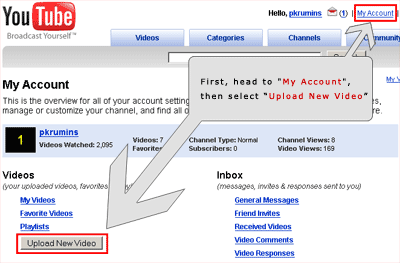
Log into your account and go to “My Account” menu in the upper right. Then press the “Upload New Video” button.

how to upload youtube videos

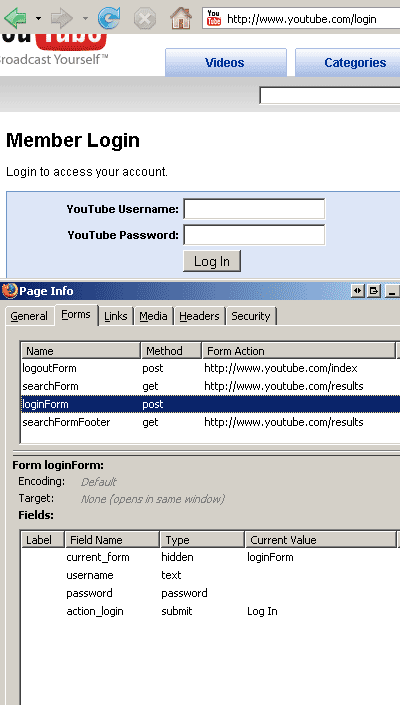
Now let’s use Firefox’ “Page Info” tool which is located under “Tools” menu.

firefox’s page info built in tool

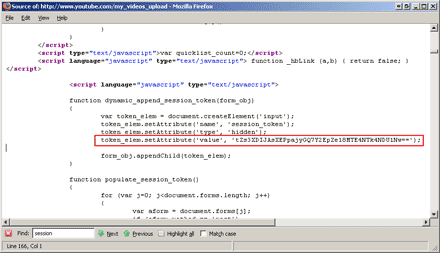
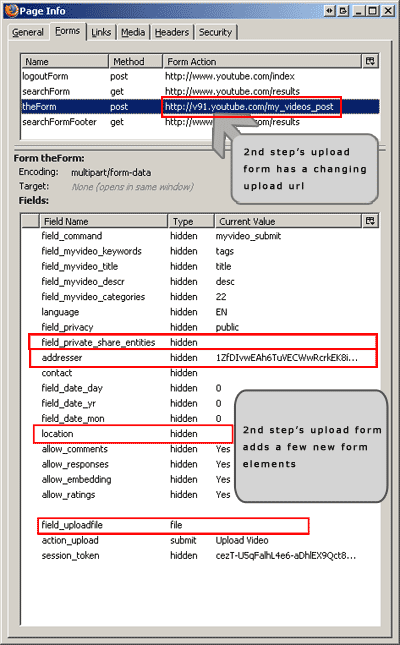
When the “Page Info” tool pops up, select the “Forms” tab. The tool will list all the HTML forms on the page. The one named “theForm” with action’s url “http://www.youtube.com/my_videos_upload” is the upload form! When a user uploads the video, it gets submitted. Our program will submit this form for us.
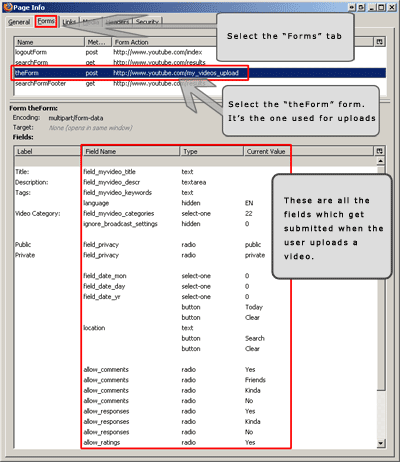
youtube upload video page’s forms, fields, values

Now that we have found all the fields we need to submit, we can write the tool itself. I’ll use my favorite programming language - Perl, again. It is perfect for this job because it has extremely good packages for working with HTTP protocol.
I will probably write another post just about the Perl programming language - how to get it working on Windows Operating System. For now, if you are running Windows, then you can download ActiveState’s ActivePerl which is Perl’s port to win.

Continue reading 'How to Upload YouTube Videos Programmatically' Continue reading ‘How to Upload YouTube Videos Programmatically’

Comments (70) Comments | Email Post Email 'How to Upload YouTube Videos Programmatically' to a friend | Print Post Print 'How to Upload YouTube Videos Programmatically' | Permalink Permalink to 'How to Upload YouTube Videos Programmatically' | Trackback Trackback to 'How to Upload YouTube Videos Programmatically'
(Popularity: 19%) 27,838 Views

Did you like this page? Subscribe to my posts!

Page 1 of 212»